
Feature Drop: Card Page Overhaul

Efren Abrego • November 2, 2026

Surgical Extraction | Art by Steven Belledin
Hello traders!
Today, we’re bringing you another major update to Cardsphere: a brand new card page that brings with it a number of enhancements that are both highly requested and long overdue. We’re going to break down the changes section by section, as this page has been completely overhauled from top to bottom.
Keep in mind, although this is a major update, the goal was to at least have what was present on the original card page, with enhancements that make sense to bake into this release. And although there are a lot of enhancements, we already know there are still many areas to improve, which will come in future updates.
TL;DR:
- The pages where you read and interact with cards on Cardsphere has been overhauled
- User requested features and brand-new workflows have been added
- More updates planned later
The New Card Page
It might not be exactly clear, so when we say the "card page" we mean the individual pages you use to browse and interact with a single printing of a card on Cardsphere. It might be more easily explained by an image:
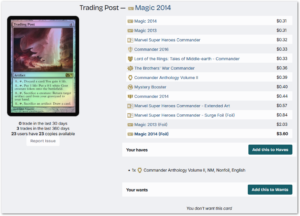
Here is one last look at the card page, still with the original factory paint job. A simple image of the card with a list of every other available version and not much else. It was a page that made perfect sense before Project Booster Fun.
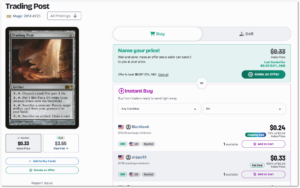
And here is the new card page, or part of it anyways! The new card page moves the other versions to a different area of the page, replaced with new functionality contained within these Buy and Sell tabs. If you wish to quickly see the other versions, there is a new "All Printings" button that will move you down the page to view that info.
The Buy Tab
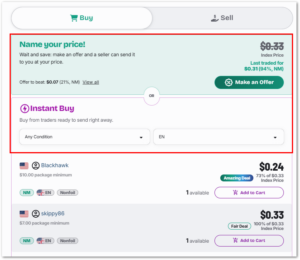
Diving in first to the Buy tab, we immediately present the user calls to action for either of the two Cardsphere trade flows which result in receiving a card, so users may get started trading immediately after landing on the card page, without having to scroll to the page or navigate away.
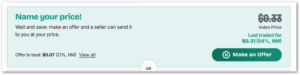
First, the top half guides a user toward creating a new Offer (Want) for the currently viewed card. If you have no existing offers, you’re presented with the option to make an offer while also given quick info about the last trade price and the current high offer.

If you have an existing offer, you’re presented with this view that shows info about your current offer and where your offer is ranked among other offers. A very common user requested feature has been added here: at last, you can quickly edit your offer right from the card page by clicking "Edit your offer."
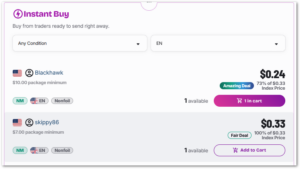
Below these are the new Instant Buy options, which now quickly show you which versions are available to buy on Marketplace. Now, users can see the seller minimum package value set by the seller before adding it to cart, and some entries will receive labels like "Amazing Deal" depending on the discount offered.
The Sell Tab
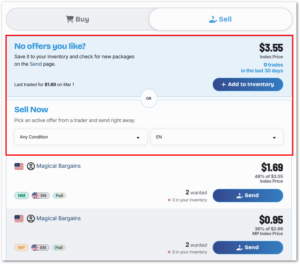
Flipping over to the Sell tab gives you a new set of controls for the same card, and you’re immediately presented with calls to action for something familiar, as well as entirely new to Cardsphere.
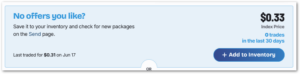
First, users familiar with Cardsphere should be familiar with adding cards to inventory: here we’ve moved the functionality to the top, where there are two possible views. First, if the card is not in your inventory, you’re given some quick information about the number of trades in the last 30 days and the last traded price, along with a button to add to inventory, which also gives the user the opportunity to add the card to Marketplace.
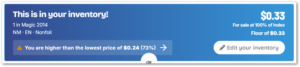
If the item is in your inventory, you’re again given a quick way to edit that item, and information about your offer and Marketplace listing are displayed, including whether you have the lowest listed price.
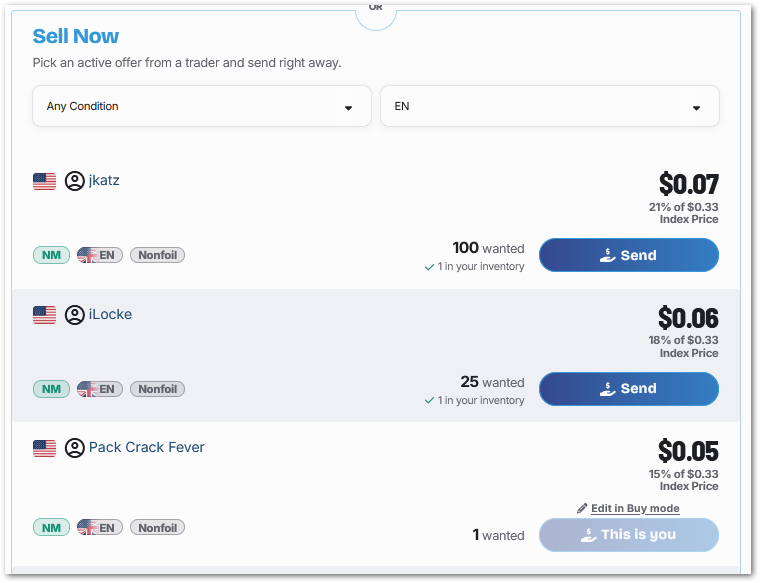
The new Sell Now feature gives users a way to quickly and easily commit a card to send to another user, even if that card is not currently in your inventory.
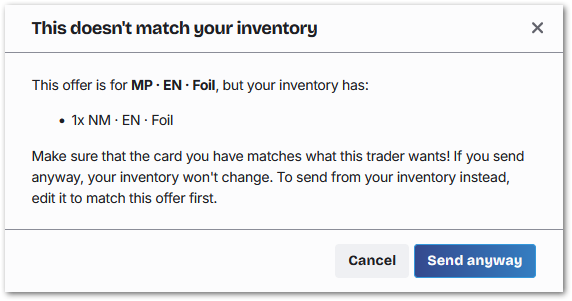
With a quick click, users are presented with a familiar trade confirmation dialogue or a warning that they are about to commit a card that is not in their inventory. Also, note that if you have an existing Offer for the current card, the Sell Now button is replaced by an indicator that links back to the Buy tab to edit your offer.
Trade and Price History
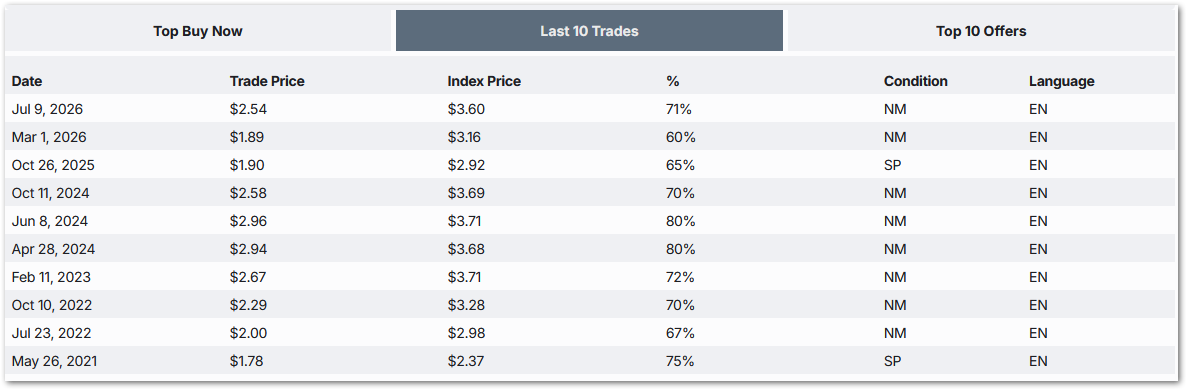
Like the rest of the card page, the trade history portion has seen few updates since 2017, only adding the Top Buy Now tab when we first opened Marketplace. A simple way to see trade history at a glance, but lacking a lot of info Magic players are accustomed to seeing on modern sites.
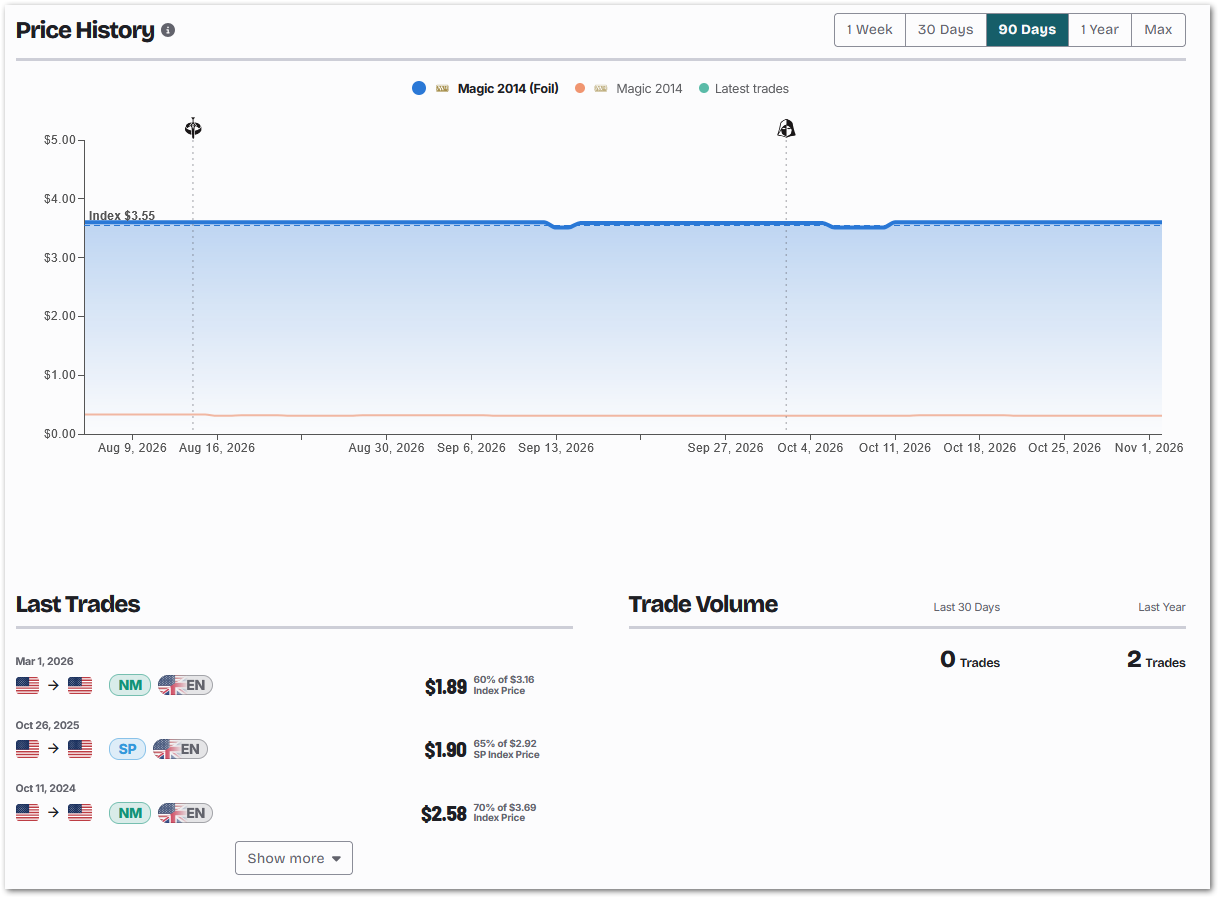
The new card page retains the last traded history, but since the Buy and Sell options are now above, it’s been replaced by another highly requested feature: card price history. A graph shows the history for both foil and nonfoil finishes of the current card, with One Week, 30 Day, and 90 Day options available to all users, as well as One Year and Full Price History available for premium users.
Other Printings Gallery View
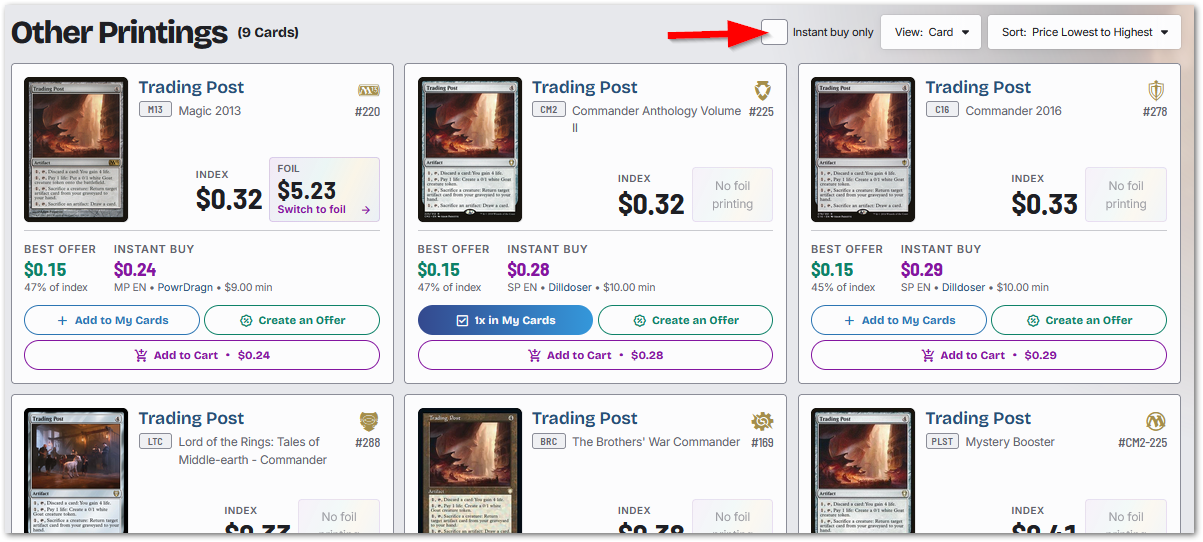
A new visual way to view all printings of the current card is now located near the bottom of the card page, quickly accessible by clicking the aforementioned "All Printings" button. Here, users have the same functionality we introduced when the set pages were overhauled, which gives users the ability to complete most buy/sell actions without navigating to a new page.
Also the new Instant Buy only checkbox gives users an fast and simple way to find any versions that are currently available for Instant Buy.
Final Thoughts
As mentioned, the goal of this update was to keep the information and feature density of the old page while including improvements where it made sense. We've already got a long list of improvements that we want to deliver after this first, initial push.
Please help us improve this page by giving us feedback! Remember, "This sucks, I hate it" is indeed feedback, but not the kind of feedback we can do anything with.
Thanks, and happy trading!
xoxo Efren
