
Feature Drop: Advanced Copy and Paste Importer

Efren Abrego • August 26, 2026
Reconstruction | Art by Anson Maddocks
Hello traders!
We’re excited to announce another major feature drop: an advanced version of our copy and paste import tool, offering users total control over how cards are imported to Cardsphere.
Find the Advanced Copy + Paste Importer here.
How It Works
To start, it works the way the feature did when we first introduced the text importer. You’ll need the contents in the clipboard of your device. Cardsphere supports clipboard exports from many applications such as Archidekt, Moxfield, MTGGoldfish, MTG Arena, and almost any app with similar export capability.
On Archidekt, the export option can be chosen with the default settings by clicking More, Export, and then clicking the Copy button using the default settings
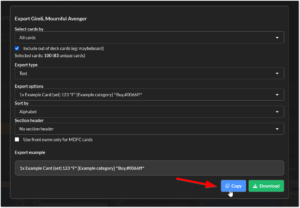
From there, navigate here to view the new Advanced Copy + Paste importer. Note the new toggle that lets you choose between importing to buy or sell.
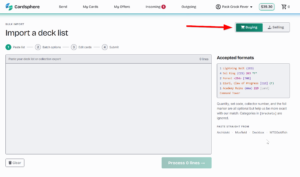
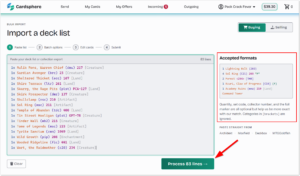
After you’ve made your selection, paste the contents in the field to begin the import. The field attempts to color code recognized data, allowing users to easily understand what will be imported, and the expected syntax is explained in the legend. Once your data is pasted and ready to go, click Process to begin.
Advanced Importing to Offers For Buying or Receiving
From here, Cardsphere attempts to recognize the imported data, and short summary of the results are shown, along with an opportunity for users to swap between Buy and Sell if they did not make the selection in Step 1.
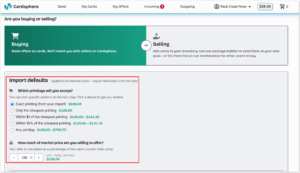
When importing to buy or receive cards, users are presented with several new options for determining which card editions will be selected for your offers. For each option, a max price range is displayed to give users an idea of the total value of the imported offers.
Exact Printing – Cardsphere will only create an offer for the specific edition recognized from your import list. Users will have to change or remove any mismatches in the next step.
Only the cheapest printing – Ignores any edition information imported and selects the sets with the lowest index price.
Within $1 of the cheapest printing – The “I just want a Sol Ring,” option, which will select the edition with the lowest index price, plus any edition within $1 or less of that selection. Perfect for cards like Sol Ring, or any relatively inexpensive card where selecting “any” would include expensive options.
Within 10% of the cheapest printing – The “I just want a Tarn,” option, which will select the edition with the lowest index price, plus any edition within 10% or less of that selection. Perfect for shocks and fetches, where the cheapest printings are more than $1 from one another, but the most expensive printings are still double or triple the price.
Any – Ignores index price and imported edition and selects all editions of the matched card.
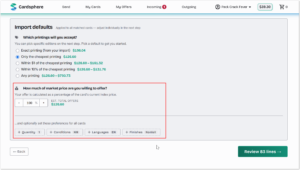
From here, users are presented with the familiar mass actions that they expect when importing to Cardsphere, including offer percentage, finish, condition, and language options. Clicking Review proceeds to the next step;.
Editing the Imported List
On the next step, users are first presented with familiar mass actions that Cardsphere has always offered, including mass application of acceptable conditions, languages, finishes, and the ability to tag items on import.
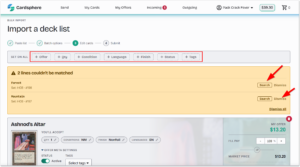
Below that is a new feature that lets you search for any mismatched cards, or dismiss them to be excluded from import. Clicking Search brings up a quick search and select modal:
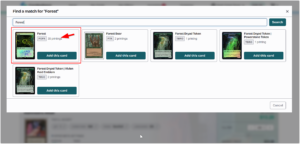
Note: This modal only allows you to select the correct card name, and the displayed number of editions that exist with that name helps narrow the selection down. The editions themselves are chosen next.
From here, we see a message warning us that editions need to be selected from the previous step.
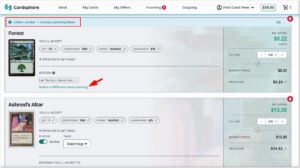
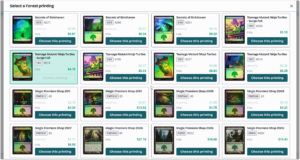
What happens when editions are selected will vary depending on whether or not you are working with a basic land. Because most basics exist with a collector number appended to the end of them, multiselect is not possible at the moment on Cardsphere. When the importer detects a basic land, this basic-specific modal appears and allows only a single selection.
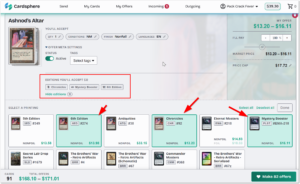
When working with any card type that is not a basic land, clicking View All Editions presents a visual drop down menu which allows for multiselect. Other meta card options may be set here on a per-card basis, overriding the options selected in the previous step for this specific card only.
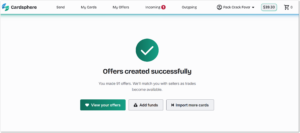
Once all modifications are made, the total card quantity and price range can be reviewed on the bottom of the screen, and clicking Make offers finalizes the import, with one final warning that offers will be filled if the account is funded, and users are presented with a summary of the import:
Advanced Importing to My Cards for Selling or Sending
Importing cards to My Haves to sell or send requires an exact edition to be selected. Sellers/Senders are presented here with a toggle to add all matched cards to Marketplace and set the percentage of index price for the marketplace listing. The total estimated value based on the cards matched so far is displayed.
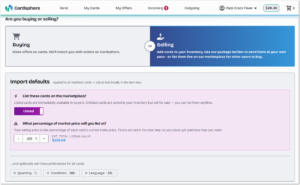
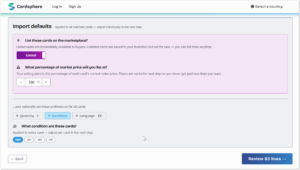
Below, there are familiar mass actions to set quantity, condition, and language of matched cards. Clicking Process proceeds to the next step.
Adding Items to Marketplace
On the next step, users are first presented with familiar import options that Cardsphere has always offered, including mass application of the required data to successfully import, such as condition, language, and finish. If not selected in the previous step, users may also mass add these imported items to Marketplace.
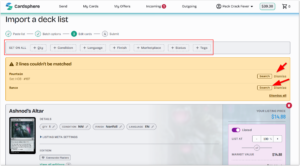
Below are new options that allow you search for any mismatched cards, or dismiss them to be excluded from import. Clicking search brings up a quick search and select modal:
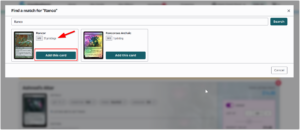
The modal allows you to select the correct card name, and the number of editions that exist with that name helps narrow the selection down. The editions themselves are chosen next.
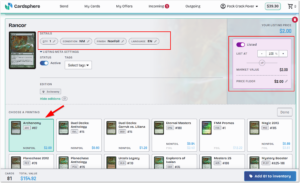
From here, we see a message warning us that editions need to be selected from the previous step. Clicking View all editions under Meta settings will allow you to select the correct edition of your card. No multi-select here, as the selection must exactly match what you have in your inventory. If you have multiple editions of the same card, separate editions are handled as separate line items in the import.
The rest of the meta settings allow modifying any card characteristics on a per-card basis, including price floor and listing offer percentage.
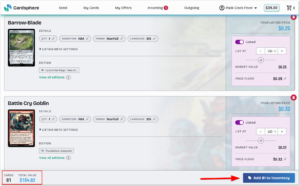
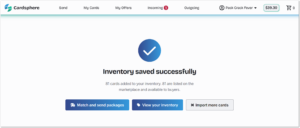
Once all modifications are made, the total card quantity to be imported, along with the total value of all cards listed can be reviewed on the bottom of the screen. Clicking Add to Inventory finalizes the import, with one final warning that Marketplace items will be immediately available for purchase by other users. Once complete, a summary of the import is presented:
Happy trading!
