
How To Use CSV Files on Cardsphere

John Sherwood • October 28, 2025

Case File Auditor | Art by Ryan Valle
Friendly greetings and welcome to Tricks of the Trade, the series about improving your Cardsphere experience. I'm John Sherwood, and I'm bringing this series back for a special Cardsphere update.
One challenge to managing a database or inventory of Magic cards is sorting different versions of the same card. Cardsphere recently completed an update to associate all tradeable cards with their Scryfall ID.
For many users, this transition is seamless. You can still search for cards by name and browse different versions to add to your Haves and Wants. For people utilizing CSV files, this update improves Cardsphere's compatibility with other Magic sites and services. Which brings us to the topic of this article: how to use CSV files on Cardsphere.
What Is a CSV file?
A comma-separate values (CSV) file is a text file format used for digital records keeping. Cardsphere and other Magic-adjacent websites import and export CSV files to make card inventories, buylists, and decks portable between applications.
Additionally, users can edit CSV files in programs like Microsoft Excel and Google Sheets. One key advantage of a CSV file is the ability to manage a batch of cards, instead of managing every card one at a time.
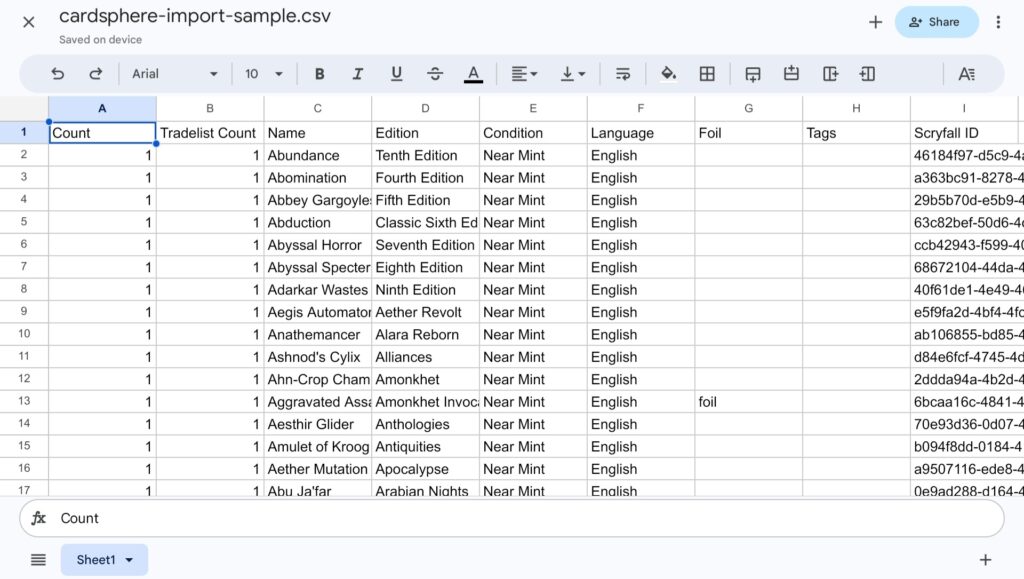
Cardsphere provides a sample CSV file to help users get the most out of these features. The sample CSV uses eleven columns for different information. Some of these are essential, like the card name. Others are optional, like tags.
The more columns that are complete, the easier it is for Cardsphere to utilize your file.
Import to Cardsphere
You can import a CSV file to Cardsphere to update either your Haves or Wants. To import a CSV file to Cardsphere, navigate to the "Actions" tab on the Haves or Wants page, then click Import.
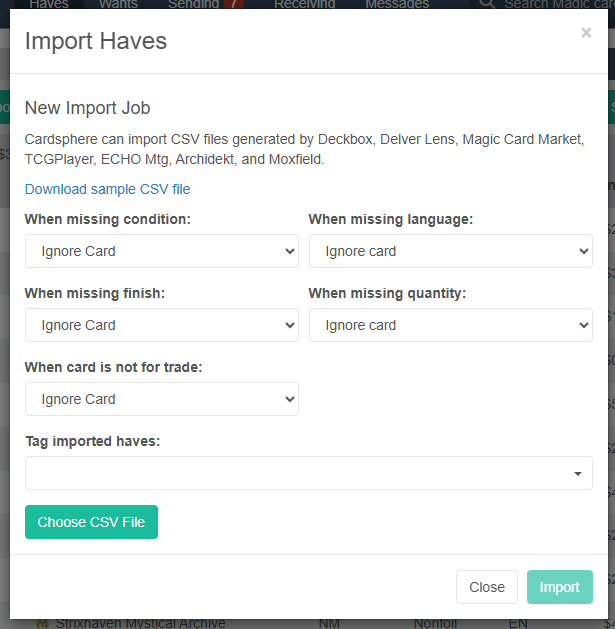
A small pop-up window appears when you import. There are several selectable dropdowns to help the site manage compatibility issues with your CSV file.
For example, the box titled: "When Missing Finish" tells the site to assume imported cards are either foil or non-foil. As shown in the images above and below, the questions are slightly different, depending on whether you're importing Haves or Wants. These differences are associated with actions that apply specifically to Haves or Wants. The core fields in the CSV file are the same for both Haves and Wants functions.
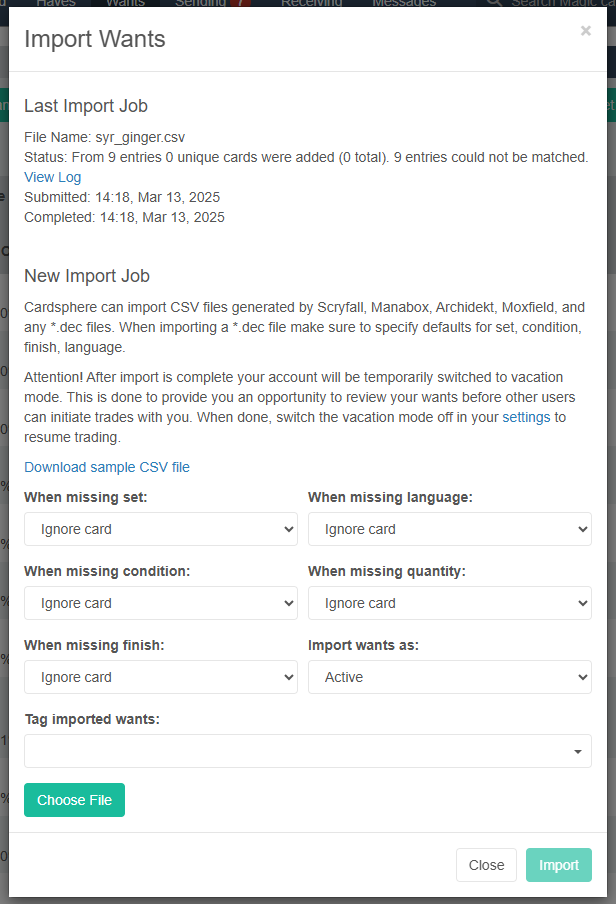
When you Import Wants, the field "Import Wants as:" allows you to choose Active or Paused. We recommend importing Wants as Paused, so you can make sure everything imported correctly, then switch to active before other users commit cards to packages.
You can also use Vacation mode in your account settings for the same purpose.
Tagging cards on import is a good policy to ensure you have an easy way to undo anything imported by mistake. For example, if you accidentally imported cards intended to be Haves to your Wants by mistake, filtering by the tag you created on import lets you mass delete the entire list of cards for a quick fix.
Export From Cardsphere
CSVs exported from Cardsphere are handy for a variety of situations. You can use these files to manage your collection, list marketplace inventory on multiple platforms, build decks online, or simply as a data backup for your Cardsphere account.
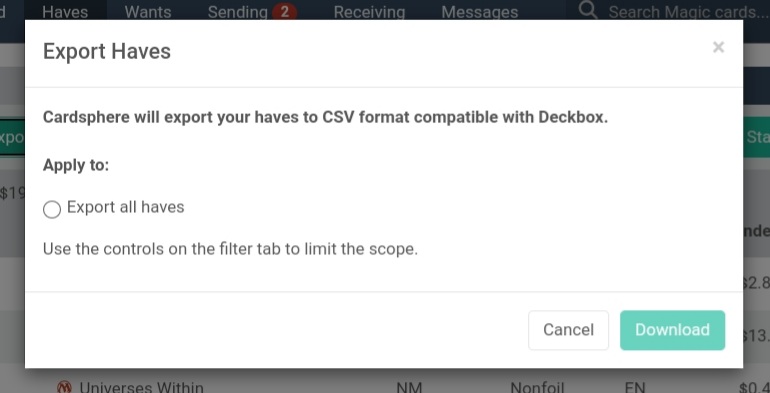
You can curate the contents of an exported CSV file with the filters on the Haves or Wants screens, then click Export. The pop-up windows for Export Haves and Export Wants are identical. Both screens give you the option to ignore the filters and "Export all" by selecting the bubble before you download.
Tokens and Cardsphere CSV files
Many Magic: The Gathering players and collectors are very particular about their tokens. Unfortunately, Scryfall treats each side of double-sided tokens as a different object by giving each side a unique Scryfall ID. For Cardsphere users, this means distinct double-sided token printings can be difficult to identify on our site.
Also, users listing token Haves with a CSV file should be mindful of their line items. If you accidentally list both Scryfall IDs, then you can end up with two Haves for one physical card.
Premium CSV Features
Upgrading your Cardsphere account to Premium comes with several perks, including a couple of CSV-specific benefits. Any user can download their last year of ledger history in CSV format, but Premium users have access to their last three years of ledger history in CSV format.
Additionally, Premium users can export a 1-year trade history that has different fields from the ledger history. These perks are nice organizational tools for any Cardsphere user, and they're a boon to anyone trading a large volume of cards.
Unlimited tags for Premium subscribers also makes it easy to tag every import for easier inventory or Want list management.
Filed Away
If you have any tips or tricks for using CSV files, please share them in the comments below. The Cardsphere Discord server is also a great place to share your wisdom, or ask for help. Join us there to ask questions, post your Mail Days, and connect with an outstanding community.
Until next time: Happy trading!


